
Getting Started with Topaz Integration
Welcome to Topaz Integration With Acumatica Cloud ERP
We’re thrilled that you’ve chosen our eSignature plugin to enhance your digital signatures within Acumatica. We’re here to assist you installing Topaz signature pad directly connected with Acumatica system. Please follow these instructions below. If you need any help or have questions, just let us know!
Hardware Supported
- T-S460 Model Series – SigLite 1×5 (T-S460-HSB-R USB)
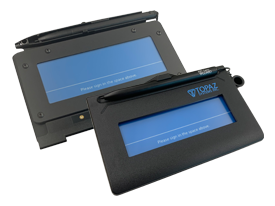
SigLite Standard Pads
Installation of Topaz Software
Step 1 – Install Browser Extension Software
Capture handwritten signatures for web applications running in the Chrome, Firefox, Edge, and Opera browsers. Supports remote usage.
Alternatively please download this file and install on the PC (No Mac supported) to register the application
Download and run this https://www.topazsystems.com/software/sigweb.exe package this will install the necessary files required
Step 1b – If additional settings needed we can run and configure other applications, please refer to product documentation
Step 2 – Once it’s installed then visit this link and test https://www.sigplusweb.com/sigwebtablet_demo.html if your topaz signature pad is showing the signature on this website. If this works then Topaz signature pad is recognized by your browser with the help of SDK/files required to accept the signature.
This is a good sign that we can test our eSignature plugin. If you continue to have issues then you will have to contact Topaz Support and request further help.
Step 3 – Close all browser and login to Acumatica instance, upload the custom package provided by InfoSourcing Inc and publish the package on the tenant/instance.
Once published access the eSignature configuration screen and click Activate button to paste the license key provided by the Customer success team.
Once the license key is plugged in you can test Acumatica Topaz Signature pages on Sales order or Shipment screen and see if the signature is accepted by clicking on “Sign and Done” buttons
Need Help or Looking for a Feature?
Please don’t hesitate to contact us here.
We’re always eager to help and are open to suggestions for new features.
